WiFi & Connection Types
Setting up networks and routers so that a browser or app can connect to a device inside a remote network securely and easily is difficult. For this reason most IoT systems rely on a public cloud server that's easily accessible by both the browser/app and the device.
ShowMatic supports three connection types - Cloud, Local, and Direct. The app will attempt to make the best connection possible before large transfers or time-sensitive operations like real-time programming. The type of connection it will be able to make depends on:
- If you're connecting through a browser or one of our apps.
- Where you are.
- Where the device is.
- Network configuration.
WiFi Connections
Cloud to a Remote Device  

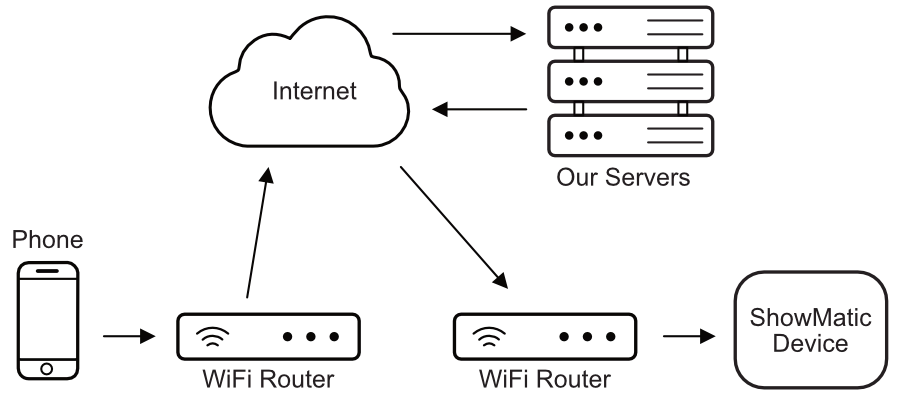
If you and the ShowMatic device you are trying to access are on different networks, your data will flow up to our cloud server in Texas, then down to the device on its network.
Cloud to a Local Device 
Web browsers are unable to make secure local connections to most devices without throwing up multiple warnings. For this reason, even if the device is right next to you, all data will be routed through our cloud servers. As you can see below that's a lot more hops for the data to take which can slow things down considerably. For this reason we highly recommend using one of our apps as they are able to connect securely to your local device on most networks.
Some network configurations will prevent even our app from making a local connection. For example, if the app is connected to a Guest network and the device is on a different network, or vice-versa.
Local Connection  

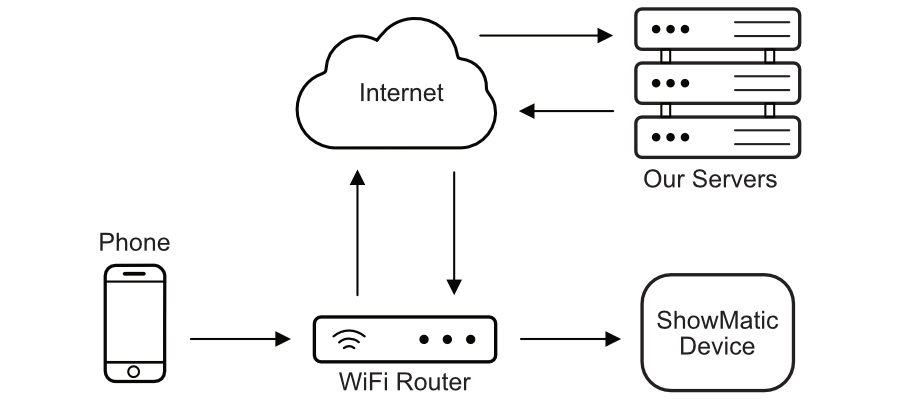
If you are using one of our apps and are in the same location as the device you'll usually see a Local connection. This makes file transfers and real-time programming much more responsive as the data only has to go up to your router or switch and then down to the device. This is the connection you want to see if the device is on-site and connected to WiFi.

Direct Connection  

If you are in a remote area without WiFi, or you prefer not to connect the device to WiFi, you can make a direct connection to the device. For these connections you must put the device into WiFi Access Point mode. In this mode it will create a WiFi network you can connect to with your phone or computer. This connection is very fast. One downside of this approach is that your computer will often lose internet access while it's connected. Phones are generally smart enough to fall back to cellular for internet access for the brief period you are connected to the device's WiFi.
Direct Connections are preferable to Local Connections in cases where you or the device are too far from the WiFi access point. As long as you and the device have some kind of local or cloud connection the app can assist you in making a direct connection. It basically just asks the device to enter WiFi Access Point mode and prompts you to connect to the correct WiFi network, saving you from having to get physical access to the device.

WiFi Deployment Types
Range and Signal Strength
For WiFi to be reliable the signal strength between the device and the access point must be decent. The maximum distance you can achieve will depend on many factors including radio noise, number and type of walls, nearby networks, etc. If the signal strength reported by the device drops below about -70dB you're at the edge of your range.
You can check the signal strength of each of your devices in the Insights page of the app or website. Look for the WiFi RSSI graph.
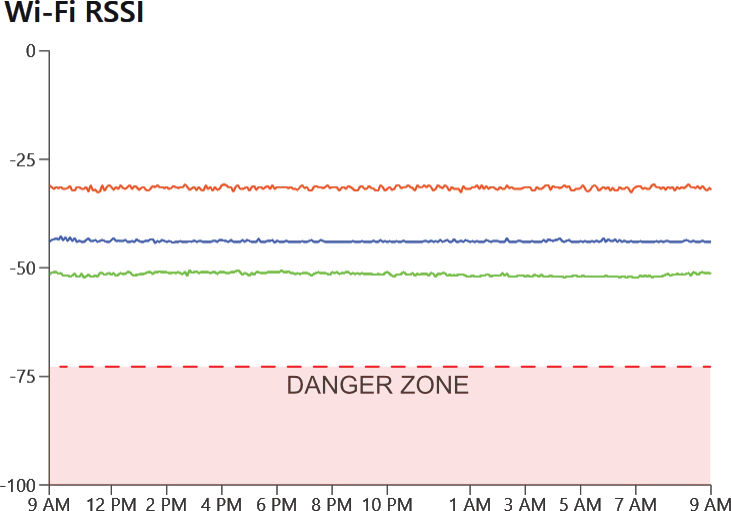
Typical range indoors is around 50 to 100 feet depending on the number of walls. In areas with no walls, like outdoors or in facilities with open ceilings, range can increase to 300 or 500 feet.
Small Deployments
For small deployments a single router similar to what you would use in a house or small office might be all you need. These devices are often referred to as routers, but in reality they combine a network router, WiFi access point, and sometimes even a modem all into one device.

Large Deployments
For large deployments the router and access point are rarely combined like they are in residential applications. You ideally want a single router with multiple access points spread around the facility. This ensures you can make local connections to the devices regardless of which access point they are connected to.
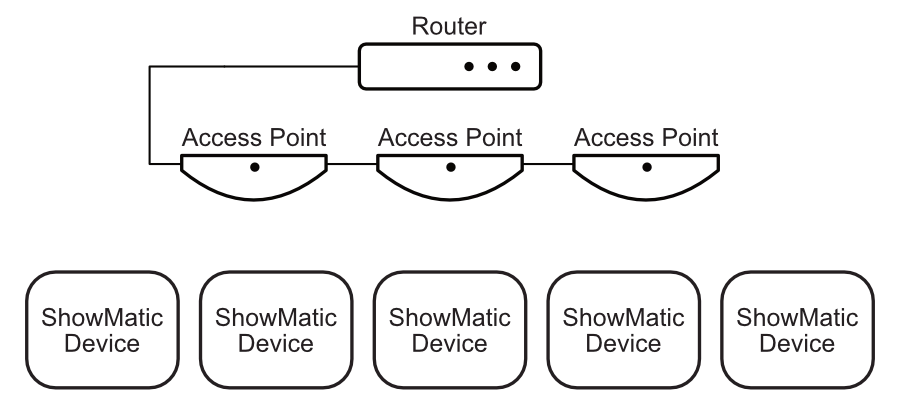
Having the access points wired back to the router is highly preferred for best performance. Sometimes that's not possible so some solutions will use Meshing to connect one access point to another wirelessly. This does work, but will sacrifice speed and limit the distance between access points.
In our experience, UniFi sells excellent network gear that can scale to any size at very reasonable prices.
Large Deployments Done Wrong
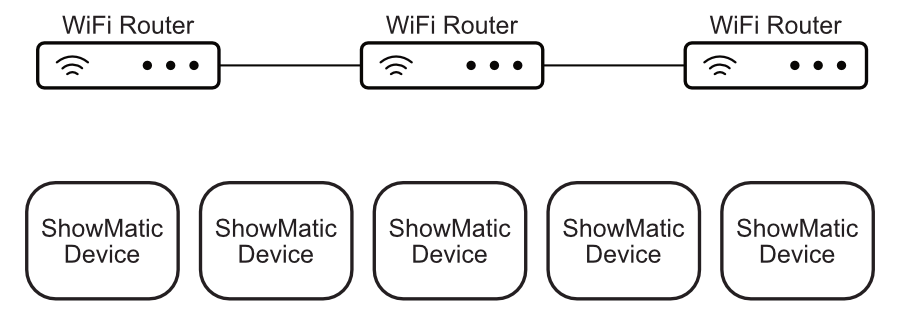
Do not try to use multiple residential routers. It's very difficult to set these up in a way where the devices can communicate between the routers. Also, the wireless systems of each router will compete with each other instead of trying to work together like they would in a single system.
WiFi Network Configuration
For large deployments some thought must be put into the WiFi configuration. If you share WiFi with guests you do NOT want their devices on the same network as your internal computers or servers. They would not be able to connect to your ShowMatic devices without your password, but it's still bad practice to mix untrusted and trusted devices on the same network.
If you plan on deploying a large number of ShowMatic or IoT devices, a WiFi network dedicated to just these devices would be preferred. This keeps the noisy chatter from everyone's computers and phones separate. These networks would generally be set to use 2.4GHz as this frequency can reach much farther than 5GHz. Most small IoT devices do not support even 5GHz.
Security
If you do create separate networks for your internal and ShowMatic / IoT devices, just make sure devices on your internal network can reach into the ShowMatic network. You'll know this is the case if you see "LOCAL" connections being made by your app. If you are very security conscious and want to lock things down you can certainly block the ShowMatic network from reaching into the internal network. As long as the ShowMatic network can reach the internet and be reached by the internal network you're good.