Show Modes
Show Modes allow you to easily control how an entire group of controllers operate.
A Show Mode desribes how a show controller behaves while it is running. Use it to leave a prop live, hold it on Idle, or shut it down without unplugging the controller.
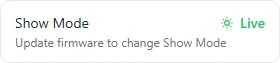
Show Mode is on PicoPro, PicoLite, PicoDrive, and PicoRelay. The controller needs firmware that includes it. Until then it stays Live, and the Info tab says to update the firmware.
The Modes
| Mode | Trigger Inputs | Idle | |
|---|---|---|---|
 |
Live | Triggers work | Plays between scenes |
 |
Idle Only | Ignored | Loops |
 |
Dark | Ignored | Does not play |
Live is normal operation. The controller responds to triggers and plays Idle between scenes.
Idle Only ignores triggers from sensors and buttons and keeps looping Idle. You can still press Play or Idle in the app, on the device list, and in a Live View.
Dark ignores triggers, does not play Idle, and turns the outputs off. Play and Idle in the app are turned off, and a Live View trigger is refused.
Leaving Live takes effect right away and stops a scene that is playing. Idle Only then starts Idle if the show has one. Dark leaves the outputs off.
One Controller
Open the controller and stay on the Info tab. Tap Show Mode.
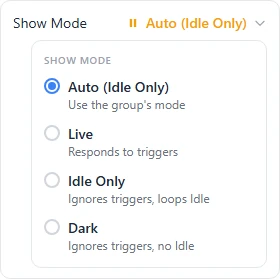
Auto follows the group. The label shows which mode that is, for example Auto (Idle Only). A controller that is not in a group treats Auto as Live.
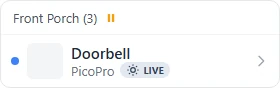
A choice on the controller wins over the group. When it is not Auto, and it is different from the group, the device list shows a badge on that row. On a phone the badge is the icon. On a larger screen it also shows the mode name.
You need full access, and the controller has to be online. If it is offline when you change a group, it picks up the new mode when it reconnects.
A Whole Group
On the Devices page, the icon beside the group name is that group's Show Mode. The same icon is on the dashboard, beside the group. Tap it and choose Live, Idle Only, or Dark.
Every controller in the group that is still set to Auto follows that choice. A controller with its own setting does not.
What You See
On the dashboard, each controller is a dot.
 |
Live |
 |
Playing |
 |
Dark or Idle Only |
 |
Halted |
 |
Offline |
The status light on the controller blinks yellow four times when it is not Live. The blue connected light shows between those blinks.
Older Firmware
If the controller does not support Show Mode yet, the Info tab shows Live and tells you to update. It keeps running as Live until the firmware is updated.