Locations
Locations group controllers by site or business so each place has its own device list, dashboard, and alerts. Share a location when more than one person needs to monitor or manage those controllers — employees, installers, or tech support.
Do not use locations to organize devices that are all at the same site. On the Devices page, tap Manage to group and reorder devices within a location.
Default Location
Every account starts with a location named Default. Controllers you adopt go here unless you pick a different location during adoption.
You can rename Default to something more useful (the venue or business name). You cannot delete it.
Switching Locations
When you have more than one location (including ones shared with you), a location picker appears at the top of the app. The dashboard, device list, and alarms all follow whichever location is selected.
Creating a Location
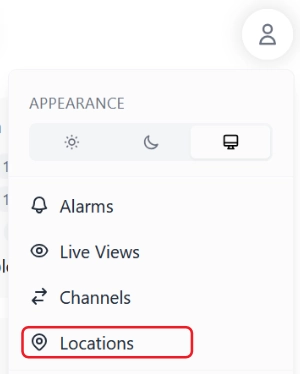
- Open the user menu (icon at the top right) and tap Locations.
- Tap Create New.
- Enter a name and tap Create.
After that, adopt new controllers into that location, or move existing ones from a device's Ownership section (device settings). Only the owner can move a controller between locations they own.
Sharing a Location
Sharing is the right way to let someone else see or work on your controllers without transferring ownership. A common case is sharing with ShowMatic support so they can see what the controllers are doing.
The other person must already have a ShowMatic account. You'll need the email address they use to sign in.
-
Open the user menu and tap Locations.
-
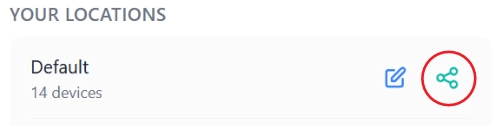
Tap the Share icon on the location.
-
Enter their account email.
-
Choose a permission level, then tap Share.
They will see the location under Shared with You and can select it from the location picker.
You can change someone's permission later, or remove them with the X next to their name. They can also leave a shared location themselves.
Permissions
View Only — They can see the dashboard, device status, and alerts. They cannot trigger controllers, edit scenes, or change settings. Use this for monitoring, or when you only want tech support to look.
Full — They can trigger controllers, edit scenes, and change settings, the same as you for day-to-day work. They cannot Abandon a controller or transfer ownership to someone else. They also cannot rename, delete, or re-share the location.
For tech support, start with View Only. Switch them to Full only if they need to make changes, then remove access when you're done.
Alarms and the Dashboard
Each location has its own dashboard (health, offline devices, weak Wi-Fi, and so on) and its own alarm settings. Sharing a location also shares those views — people with access see the same controllers and alerts for that site.
Deleting a Location
You can delete locations you own other than Default. Move controllers to another location first. Deleting a location cannot be undone, and it cannot be your only location.